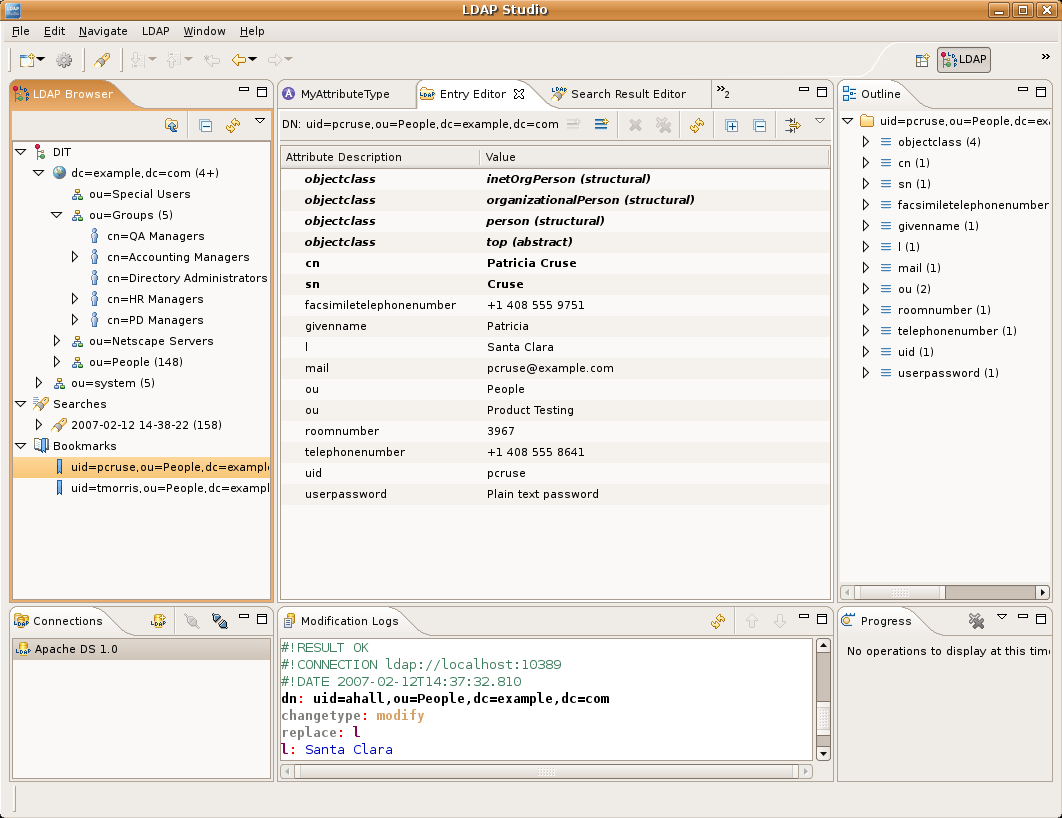
This post includes instructions to download Apache Directory Studio source code and install to a Linux machine. The instructions are tailored for a Raspberry Pi.
It includes an extra step to modify the pom.xml to add Eclipse runtime on Linux desktop for ARM processor.
It’s expected that the next release of Apache Directory Studio will include binaries for Linux ARM and so it won’t be necessary to build from source.
1. Preq it
```
sudo apt-get install git java
```
2. Git it
```
git clone https://github.com/apache/directory-studio.git
```
3. Arm it
```
cd directory-studio
vi pom.xml
# add (around line 167):
<environments>
...
  <environment>
     <os>linux</os>
     <ws>gtk</ws>
     <arch>aarch64</arch>
  </environment>
...
</environments>
...
Save and exit
4. Build it
```
mvn -f pom-first.xml clean install
mvn install -DskipTests=true
```
5. Install it
```
cp ./product/target/products/ApacheDirectoryStudio*.tar.gz ~/Tools
cd ~/Tools
tar -zxvf ApacheDirectoryStudio*.tar.gz
```
Where *Tools* is your target for applications.
6. Run it
```
cd ApacheDirectoryStudio
sudo ./ApacheDirectoryStudio
```
7. Script it
Because Apache Directory Studio has to run as root we have to create a bash script to execute.
```
# alter the paths to match your env:
vi ~/Tools/ApacheDirectoryStudio/start.sh
# add:
sudo /home/user/Tools/ApacheDirectoryStudio/ApacheDirectoryStudio
```
Save and exit.
8. Execute it
```
chmod a+x start.sh
```
9. Launch it
```
sudo vi /usr/share/applications/studio.desktop
# Paste info:
    [Desktop Entry]
    Type=Application
    Name=Apache Directory Studio
    Comment=LDAP Browser
    Icon=/home/user/Tools/ApacheDirectoryStudio/configuration/org.eclipse.osgi/78/0/.cp/studio.png
    Exec=/home/user/Tools/ApacheDirectoryStudio/start.sh
    Terminal=false
    Categories=Application;Development;
```
Save and exit. Where “/home/user/Tools” is where you put the binaries. Launcher will be under the “Programming” menu item.

 iamfortress